Roll20 and Czepeku Team Up To Bring Automated, Dynamic Battle Maps to the Virtual Tabletop
New built-in UVTT upload support on Roll20, paired with Czepeku's library of more than 12,000 hand-drawn maps, removes the hassle of setting up Dynamic Lighting for game night.

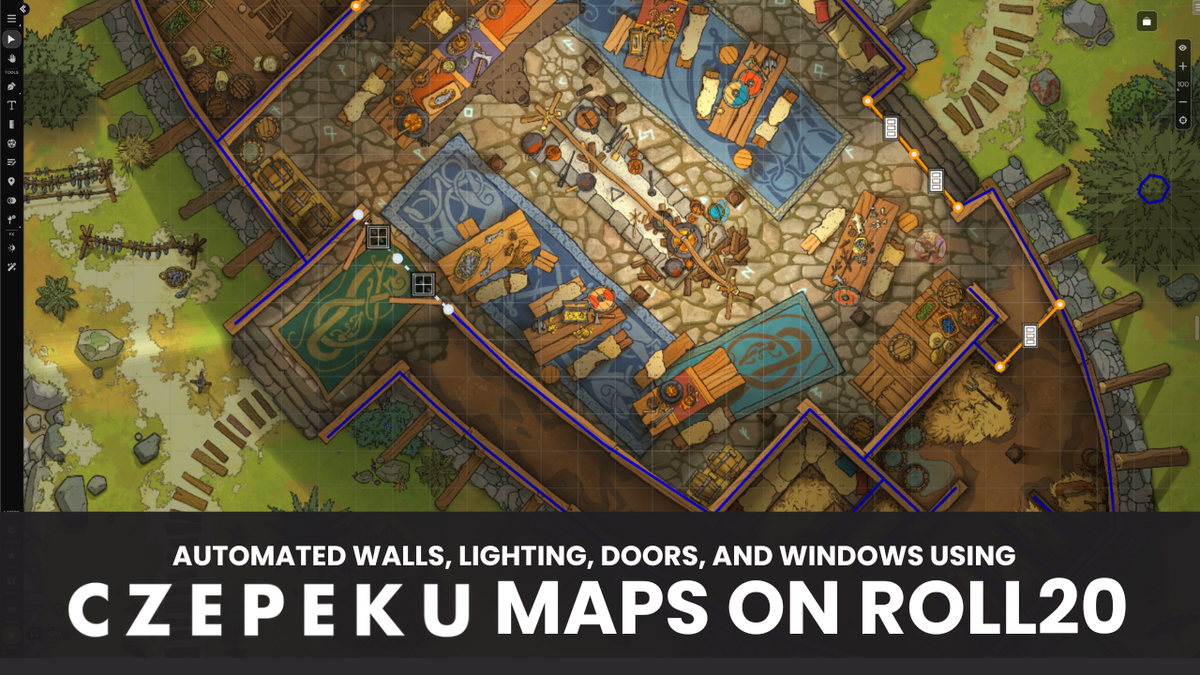
Roll20 and Czepeku have teamed up to solve a problem familiar to most Game Masters. Even the most beautiful hand-drawn maps require a great deal of time and effort to set up interactive walls, portals, and lighting for digital gameplay sessions, until now.
With Roll20's new built-in UVTT upload support and Czepeku's growing library of UVTT-exportable maps, GMs can prepare dynamic scenes for their campaigns in minutes.
What are UVTT Files?
UVTT files package the image of a map with structured data: grid size, wall placement, doors, windows, and light sources. While uploading images to Roll20 was always easy, tracing walls by hand on every room, corridor, and pillar using drawing tools took time and effort most GMs prefer to spend preparing other parts of their campaigns. With today's release, uploading a UVTT file on Roll20 automatically places the image on the Map layer and positions any walls, doors, windows, and lights on the Light layer. GMs are then able to move, remove, replace, or edit any placed elements as if they had been added manually.
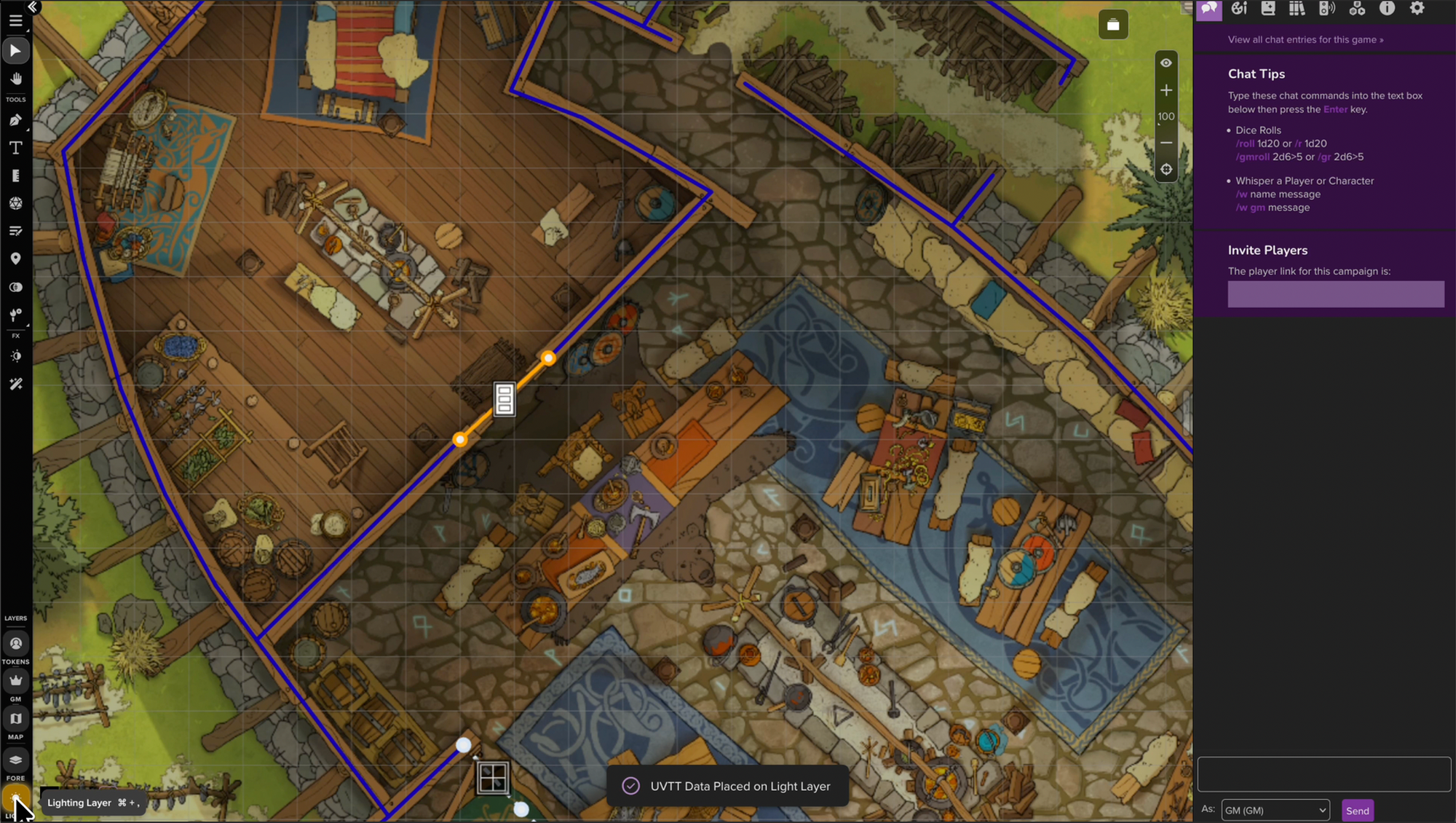
Using UVTT files on Roll20 used to require installing a community-built UniversalVTTImporter Mod Script, which was available only to Pro and Elite subscribers. The Mod Script isn't going anywhere, and subscribers who want its deeper configuration options can keep using it. But the new functionality built directly into Roll20 supports uploads from within the Page Menu, with no script installation or additional file sanitisation steps required. Plus subscribers previously excluded from any use of UVTT files can now enjoy the format and its benefits, along with built-in feature support.
Although access to Dynamic lighting on Roll20 requires a subscription (beginning at under $5/month), free users who upload UVTT maps will have the file image placed upon their Map layer, ready to use in-game. Behind the scenes, all structured data will also automatically configure on the Light layer, ready to use if unlocked with an upgrade in the future.
Uploading UVTT Files to Roll20
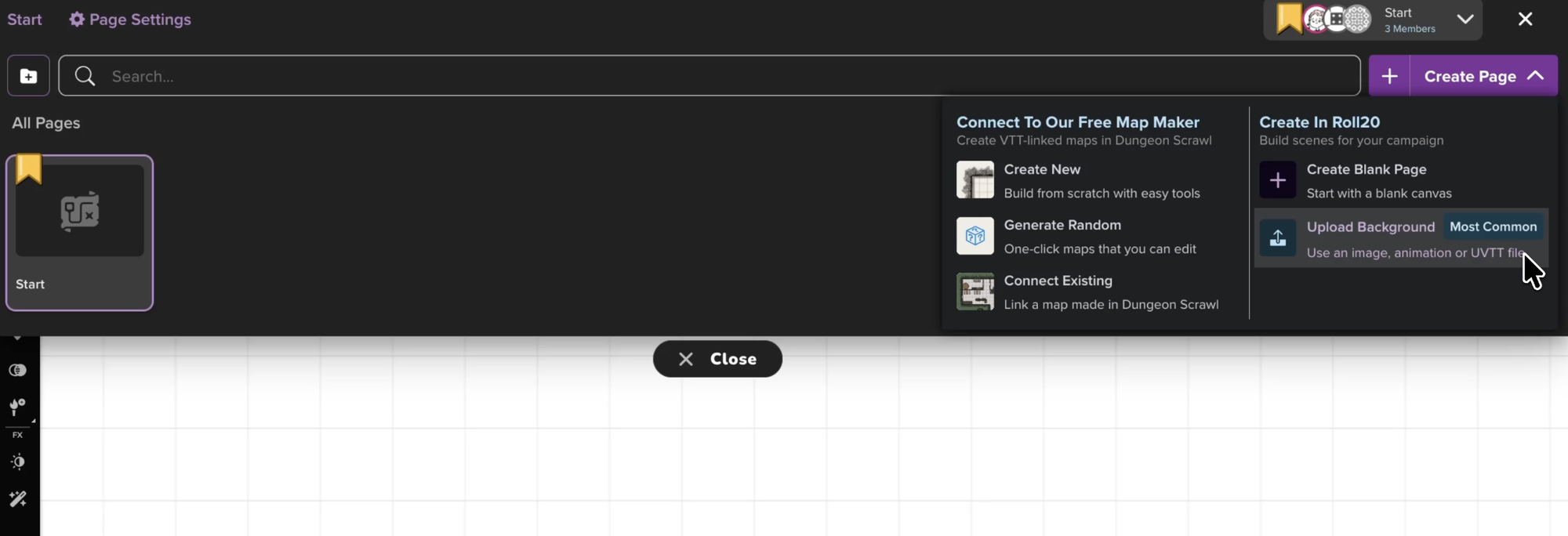
In Roll20, open your game and go to the Page Menu.
- Click Create Page, then select Upload Background
- Drag and drop your UVTT file, or browse to select it.
- Roll20 reads the file and creates a new page with the map image placed on the Map layer, and the walls, doors, windows, and lights placed on the Dynamic Lighting layer.
Tip: You can make any updates to your walls, doors, windows, and lighting after upload directly on the Tabletop’s Light Layer. For additional details, check out Roll20's Help Center
Sourcing UVTT Maps
In addition to exporting UVTT maps from popular digital mapmaking tools, Czepeku is Roll20’s recommended resource for high-quality UVTT maps that are ready to use immediately. Their catalog contains more than 12,000 hand-drawn fantasy and sci-fi maps, most of which are available as a UVTT download. A Czepeku subscription unlocks unlimited downloads across their expansive map catalog, plus access to new map packs released weekly.
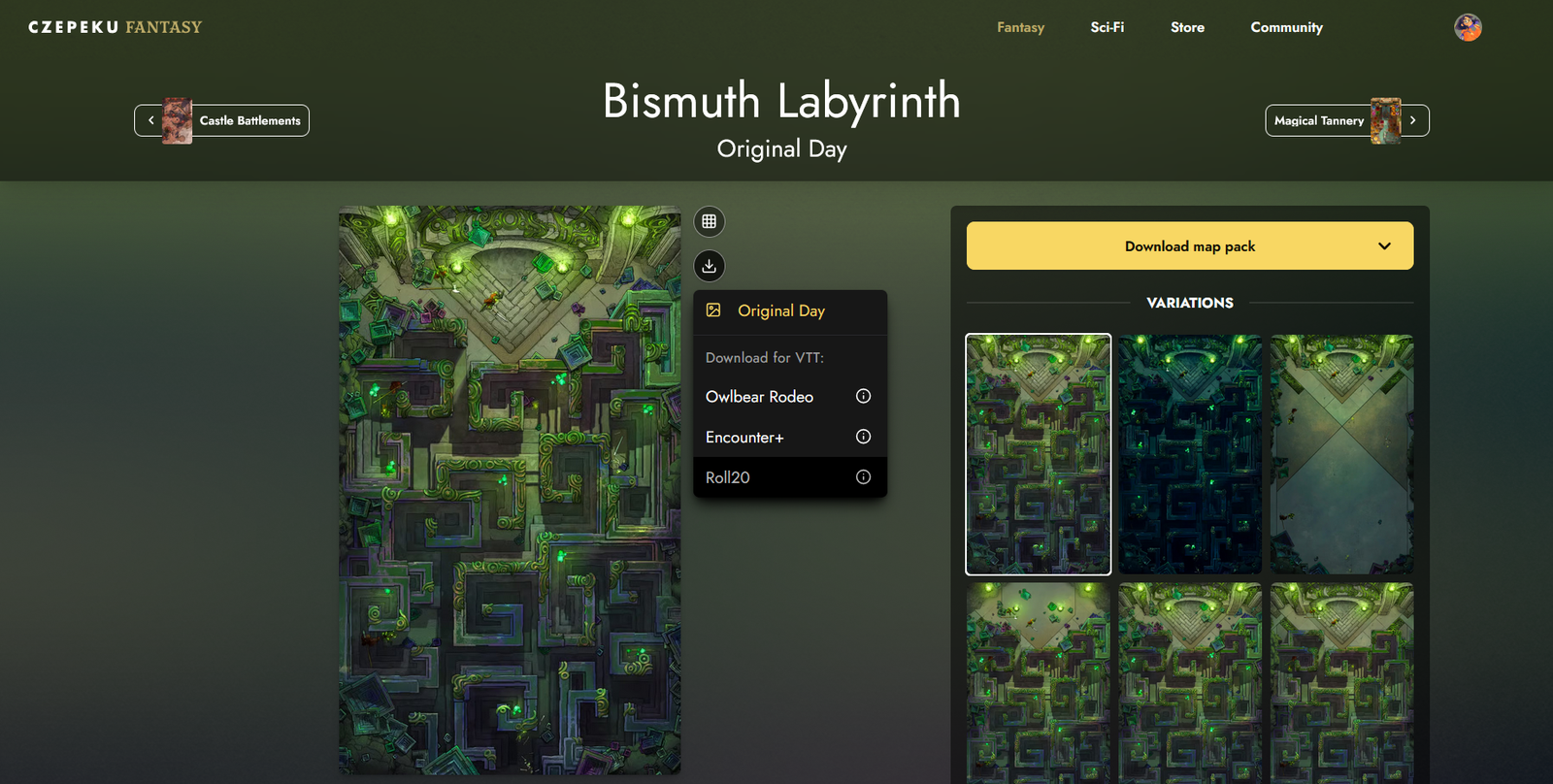
To export a UVTT map file from Czepeku:
- On the map's gallery page, find the variation you want to use.
- Click the download icon and select the Universal VTT (UVTT) option.
- This downloads a single .uvtt file, ready to use.
Both updates are now live.